vCloud Automation Center: Active Directory Computer Account Management Extension
Overview A common extension requested for vCloud Automation Center is the ability to pre-create computer account objects in Active Directory in a specific

From the archive. Originally published on dailyhypervisor.com on April 1, 2014.
Overview
A common extension requested for vCloud Automation Center is the ability to pre-create computer account objects in Active Directory in a specific Organizational Unit, and also to decommission the accounts in different ways along with the virtual machine. Without a custom workflow, you can have the computer join the domain during the customization phase, but this will only create the computer account in the default Computers container. Also, while there is an out-of-the box AD machine cleanup plugin which can be enabled, it will likely never support the multi-tenancy introduced in vCAC 6.0. vCO does not support it today either, but it is more likely to gain support in the near future. This solution implements these functions using vCenter Orchestrator and its plugins for vCAC and Active Directory. The rest of this article contains instructions on installing and configuring the vCAC AD Computer Account Management Extension. This extension allows administrators to model very specific OU structures for their AD machine accounts using vCAC custom properties, and supports dynamic OU Distinguished Name building based on combinations of properties derived from different areas of vCAC (compute resources, reservations, groups, blueprints, etc.). This extension is proof-of-concept or demo grade. While it runs well and consistently, it has not been put through a formal quality assurance process, so please use with caution. Please see the disclaimer and other information in the readme.txt file in the package.
Changelog
v1.0
- Initial release
Download
vCAC AD Computer Account Management Extension 1.0
Installation
These installation instructions assume the following:
- You have a working vCenter Orchestrator in your environment.
- You have a working knowledge of administering vCO.
- The vCloud Automation Center 5.2 or 6.0 plugin for vCO has been installed, and a vCAC host has been added.
- The Active Directory plugin for vCO has been installed, and a domain controller host where you’d like to create machine accounts has been added.
- You have the vCenter Orchestrator instance configured as an endpoint in vCAC.
- vCAC 5.2 or 6.0 is preconfigured with at least one working Blueprint.
Follow the steps below to perform the installation:
- Download com.dailyhypervisor.vcac.ad.computeraccountmgmt.package from the link above and copy it onto the local filesystem of the system where you will run the vCenter Orchestrator client.
- Import com.dailyhypervisor.vcac.ad.computeraccountmgmt.package into your vCO instance.
- Run the workflow Daily Hypervisor > vCAC > AD Computer Management > Install pre-create AD computer extension.
- Choose the vCAC host where you''d like to install the extension and click Submit.
- Follow the instructions described by the workflow to download and install the external workflow XML file into vCAC.
- Repeat steps 3 through 5 for the workflow Daily Hypervisor > vCAC > AD Computer Management > Install AD computer cleanup extension.
Configuration
To configure vCAC to use the AD computer account management extension, perform the following steps:
- Go to Infrastructure > Blueprints > Build Profiles.
- Repeat step 3 for the AdMachineCleanupPropertySet.
- You will now have all of the AD computer management extension properties in your Build Profile. Below is an explanation of each property. Custom.PreCreateAdComputer.Execute The existence of this property triggers the workflow which handles creation of AD computer accounts to run. Note: The value is set to “true” by default, but this is just aesthetic. Setting it to “false” will not stop the workflow from running. This property only needs to exist to trigger the workflow, regardless of its value. Custom.PreCreateAdComputer.OU This property’s value represents the distinguished name of the container where you would like to create the AD computer account. The format of this string should be similar to the example value provided in the property set, which is the default location for computer accounts in an Active Directory domain corp.local: CN=Computers,DC=corp,DC=local. You can also add references to other custom properties by specifying the property name enclosed in curly brackets. This will cause that custom property''s value to be inserted into that slot. Anything not in curly brackets is placed in the DN as-is. This is useful if you would like to generate dynamic distinguished names based on other attributes of the machine, such as what group the requester is a member of, or which computer resource the machine lands on. Custom.AdMachineCleanup.Execute The existence of this property triggers the workflow which handles decommissioning of AD computer accounts to run. Note: The value is set to “true” by default, but this is just aesthetic. Setting it to “false” will not stop the workflow from running. This property only needs to exist to trigger the workflow, regardless of its value. Custom.AdMachineCleanup.Delete This property tells the AD machine cleanup workflow to delete the machine''s AD computer account when it is decommissioned. Custom.AdMachineCleanup.Disable Adding this property tells the AD machine cleanup workflow to disable the machine''s AD computer account when it is decommissioned. This property can be used in conjunction with the one below, if desired, by specifying both properties. Custom.AdMachineCleanup.RenamePrefix This property tells the AD machine cleanup workflow to rename the machine''s AD computer account when it is decommissioned. It will use the value as a prefix for the new name, and append to original name to that. So, if the value of this property is "destroyed_", a machine named vm01 will be renamed to destroyed_vm01. This property can be used in conjunction with disabling the account, if desired, by specifying both properties.
- Let’s configure an example AD computer account management configuration to get a working understanding of the functionality. The next step is to refine the property set in our build profile. Since we are going to be interested in renaming and disabling the machine account when decommissioned, delete the Custom.AdMachineCleanup.Delete property altogether.
- The OU distinguished name has two parts: the domain DN, and then a group DN, in that order in the AD tree structure.
- Use DomainDN for the domain part and GroupDN for the group part.
- Disable the computer account upon decommissioning.
- Also add the prefix "destroyed_" to the machine''s name upon decommissioning.
Group will be specified at the business group level, so in my Production Admins business group, I created a property named GroupDN with the value "DC=Production Computers".
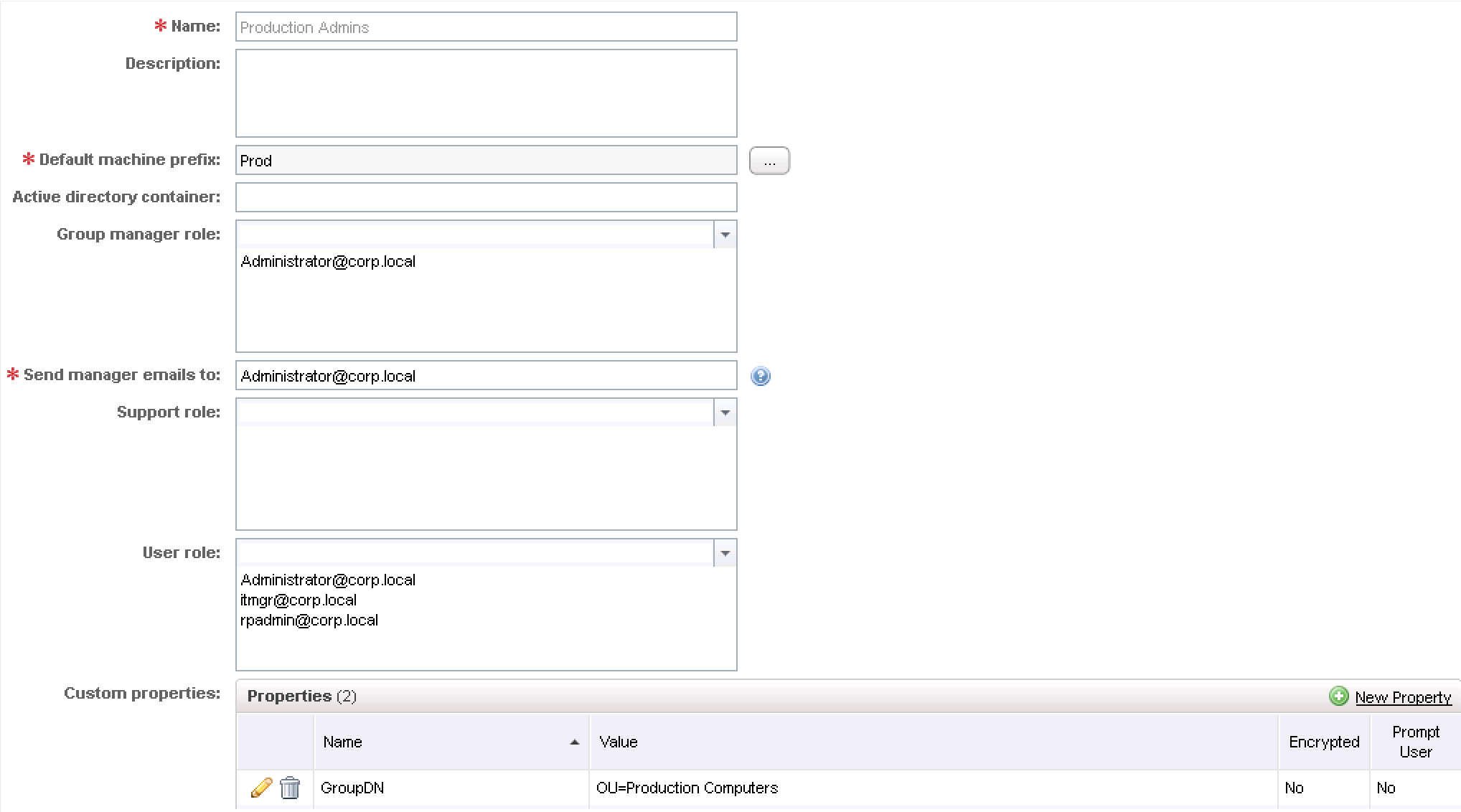
Now we need to configure the custom properties for each property variable in the OU''s DN. For no particular reason, let''s specify the domain DN in the Compute Resource.
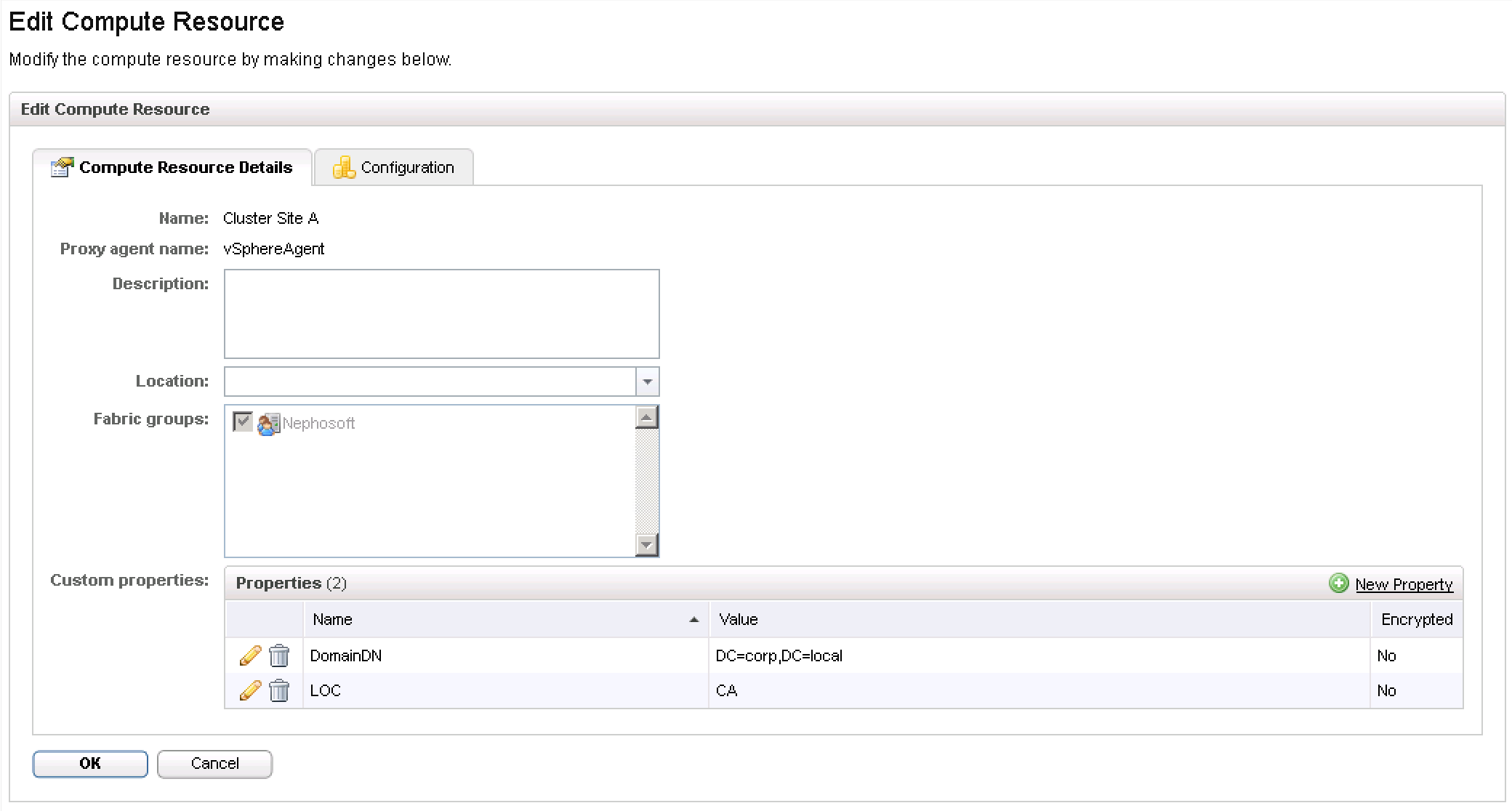
I set DomainDN to DC=corp,DC=local to represent the corp.local domain.
Edit the Custom.PreCreateAdComputer.OU property value to model the following use case:Your Custom.PreCreateAdComputer.OU property value should look like this: {GroupDN},{DomainDN}. Name your Build Profile. You will end up with a new Build Profile as shown below.
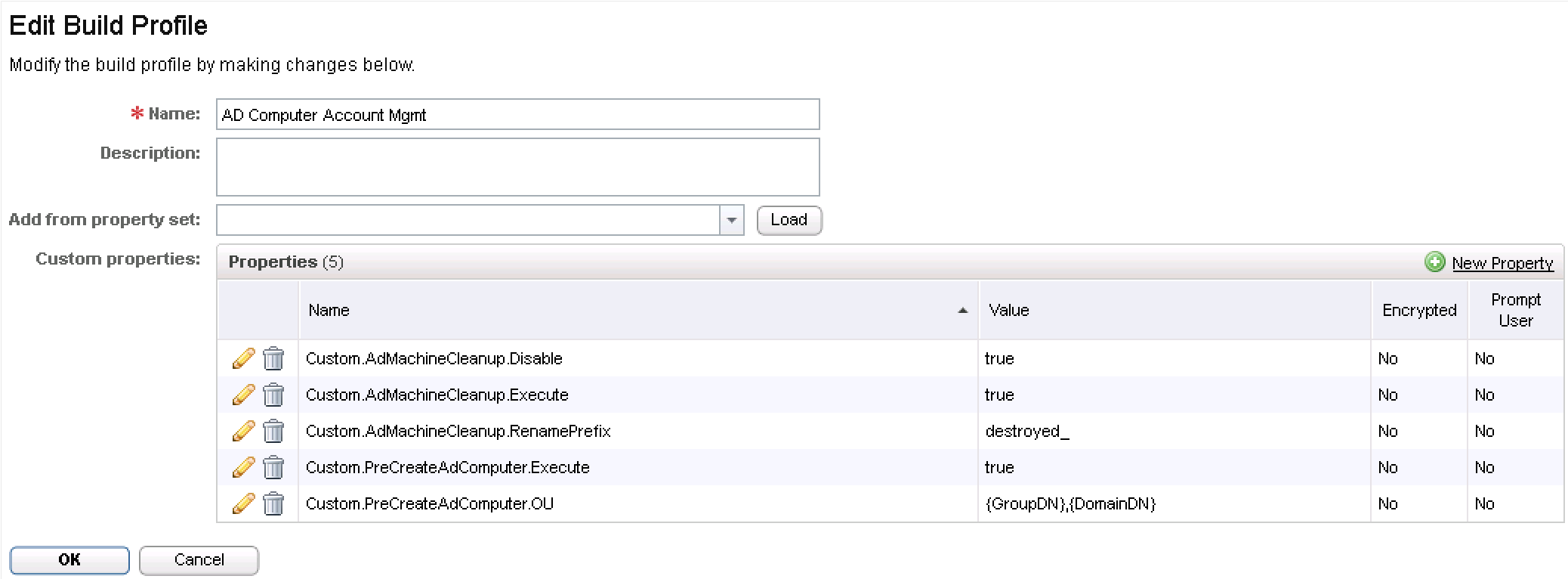
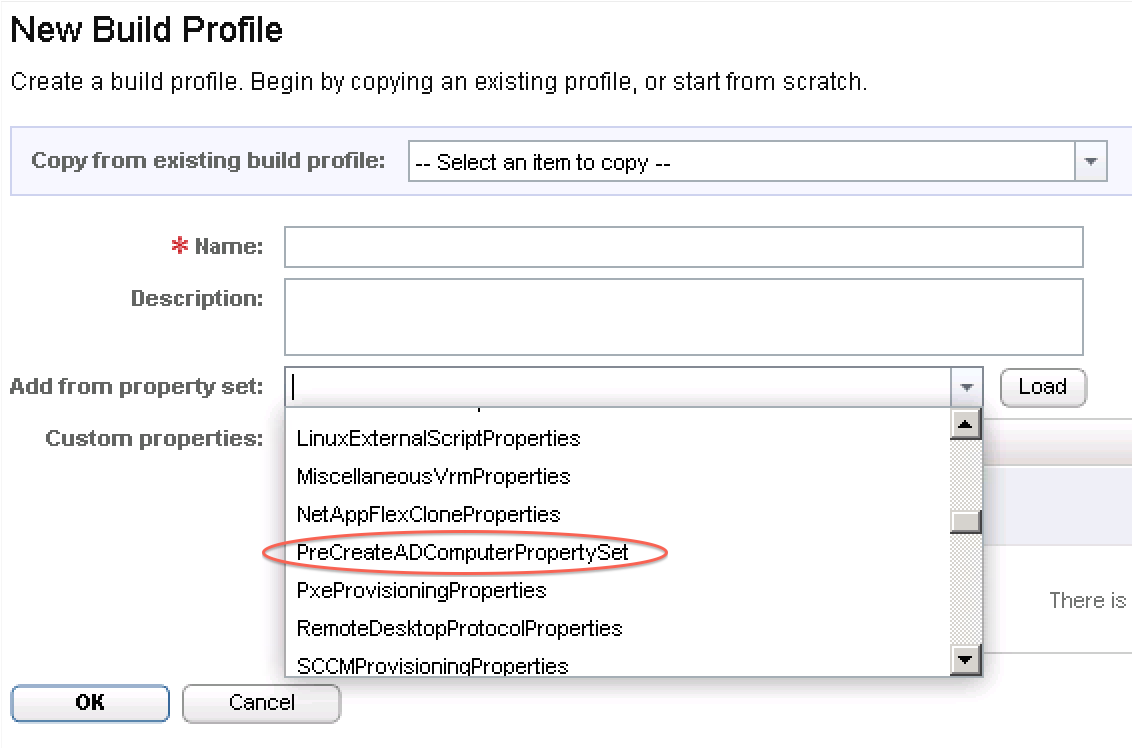
On the New Build Profile page, click the drop down for “Add from property set”, and choose PreCreateADComputerPropertySet. Click Load.
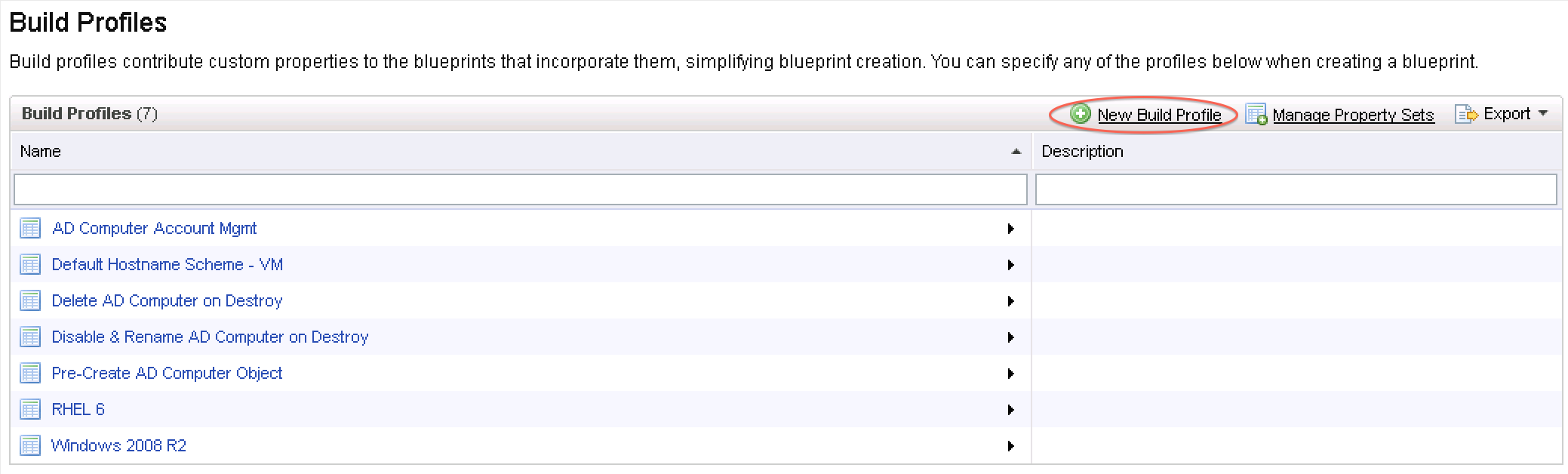
Click on New Build Profile.
So, if I request a machine on the Compute Resource with our DomainDN property, as a member of the Production Admins group, my resulting OU distinguished name should be…
OU=Production Computers,DC=corp,DC=local
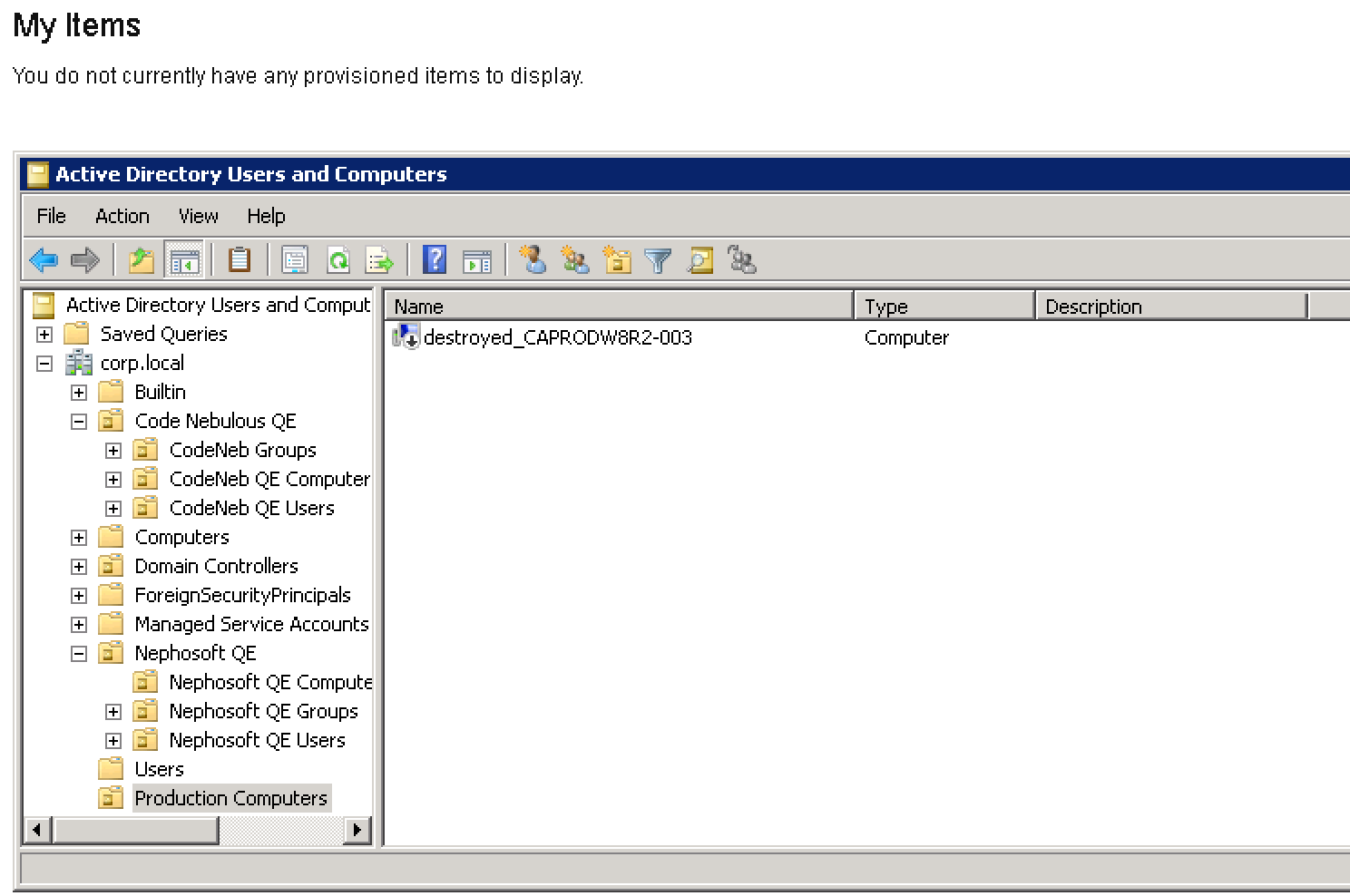
Testing a machine build reveals that the pre-create AD computer account workflow does its job.
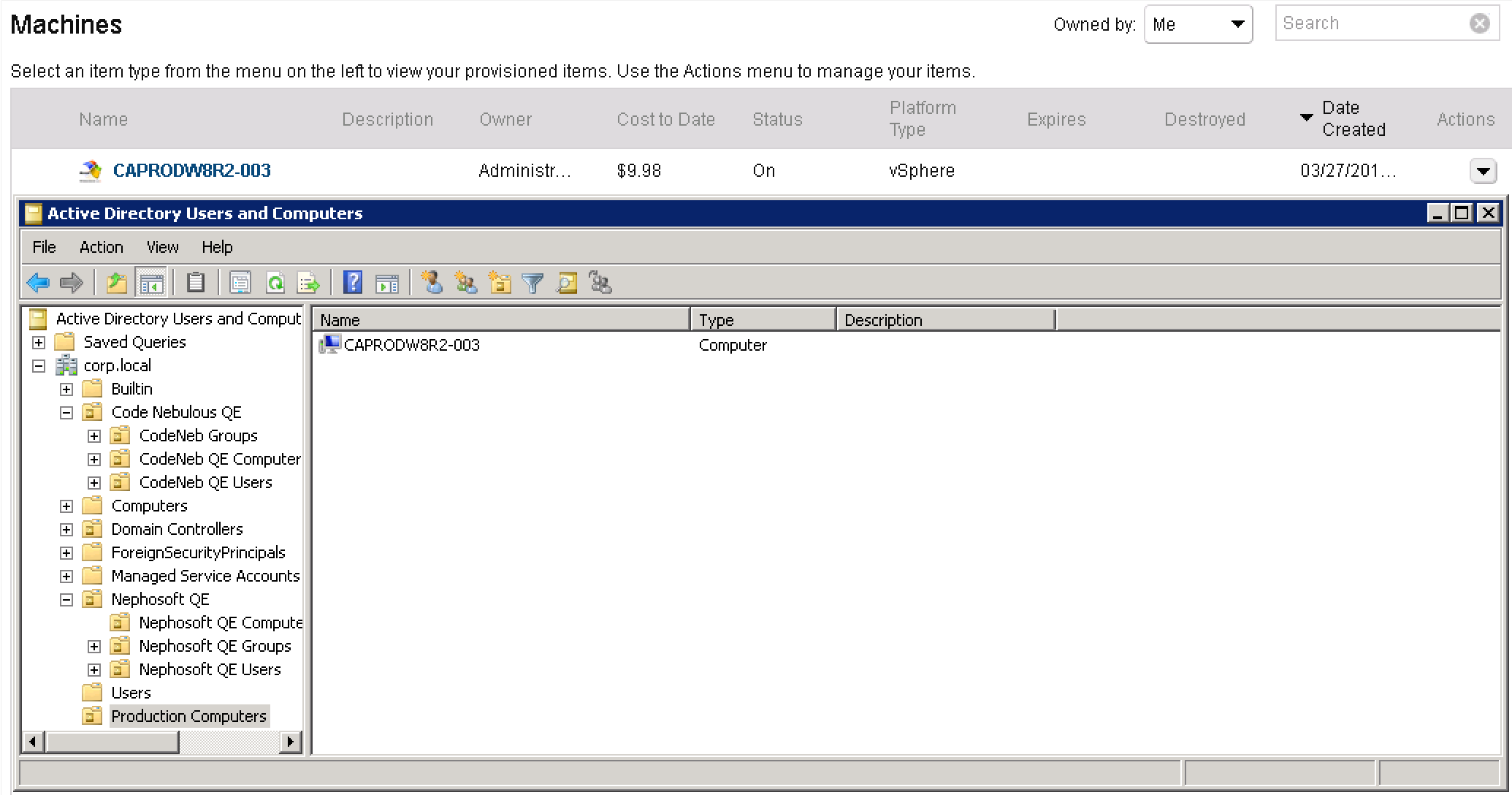
Destroying the machine reveals that the AD machine cleanup workflow also performs its duty.