VMware vRealize Automation – vRA7: Custom Hostnaming Extension for vRA7 and beyond
Overview One of the most frequent asks when using vRA is, "How do I deploy machines using my company''s hostnaming standards automatically using vRA?" Sinc

From the archive. Originally published on dailyhypervisor.com on March 16, 2016.
Overview
One of the most frequent asks when using vRA is, "How do I deploy machines using my company''s hostnaming standards automatically using vRA?" Since the out-of-the box hostnaming only provides a way to do prefix-suffix, the answer to this question usually is that it will require customization. This solution is intended to provide a way to implement this functionality by using a small, highly versatile custom extension which can handle 95% of use cases without writing custom code. The rest of this article contains instructions on installing and configuring the vRA Custom Hostnaming Extension. This extension allows administrators to model very specific custom hostnaming schemes for their vRA virtual machines, Deployments, and vCloud Director vApps using vRA custom properties, with dynamic creation of stock machine prefixes and index tracking for each unique hostname combination. This extension is proof-of-concept or demo grade. While it runs well and consistently, it has not been put through a formal quality assurance process, so please use with caution.
Changelog
v4.0
- Upgraded for vRA 7.0 (no longer supports vRA 6.x)
- Property names simplified
v3.1- For support for vRA 6.x and below, go to: https://echoesofthemachine.com/vcloud-automation-center-vcac-5-2-custom-hostnaming-extension/
Download
vRA Custom Hostnaming Extension
Installation
These installation instructions assume the following:
- You have a working vRealize Orchestrator in your environment.
- You have a working knowledge of administering vRO.
- The vRealize Automation plugin for vRO has been installed, and both a vRA catalog and IaaS host has been added.
- You have the vRealize Orchestrator instance configured as an endpoint in vRealize Orchestrator in the Infrastructure configuration.
- vRA 7+ is preconfigured with at least one working Blueprint with at least one machine component.
Follow the steps below to perform the installation:
- Download com.dailyhypervisor.vra.customhostname.package from the link above and copy it onto the local file system where you will run the vRealize Orchestrator client.
- Import com.dailyhypervisor.vra.customhostname.package into your vRO instance.
- Run the workflow Daily Hypervisor > vRealize Automation > Custom Hostname > Install custom hostname extension.
- Choose the vRA catalog and IaaS host where you''d like to install the extension and click Submit.
Configuration
To configure vRA to use the custom hostnaming extension, perform the following steps:
- Go to Administration > Property Dictionary > Property Groups.
- Find the Custom Hostname Properties Template, with its name preceded by a date stamp.
- Click Copy to create your own Property Group containing the correct properties for custom hostnaming.
- On the Create Property Group page, change the name to reflect this configuration.
- Change the description to reflect this configuration.
- You will now have all of the custom hostnaming extension properties in your Property Group. Edit the properties list to reflect your desired configuration using the property explanations and/or example below.
Extensibility.Lifecycle.Properties.VMPSMasterWorkflow32.Requested This property is defined in order to tell vRA’s Event Broker which of the machine’s custom properties to send to the custom hostnaming workflow. The default value of “*” tells EB to send all of the machine’s properties. This is required. DO NOT CHANGE OR REMOVE THIS PROPERTY. Custom.SetCustomHostname.Execute The existence of this property triggers the custom hostnaming workflow to run. This must be specified to leverage the extension’s functionality. Note: The value is set to “true” by default. DO NOT CHANGE THIS. It requires an exact match, including case, in order to trigger the workflow. Custom.ComponentMachine.HostnameScheme This property’s value represents the hostnaming scheme you are using for a component or single machine. The format of this scheme looks something like this: {part1}{part2}{##}. The parts enclosed in curly brackets represent the names of a custom properties whose values you’d like to plug in to those slots. The {##} indicates that you would like a two digit auto-incrementing index placed in that slot. Anything not in curly brackets is placed in the hostname as-is. Custom.Deployment.HostnameScheme * This property is identical to the one above, except that this scheme gets applied to a Deployment or vCloud Director vApp instead of a component or single machine. Custom.ComponentMachine.NoIndexOnFirst Adding this property and setting the value to "true" causes the workflow not to add the index to the hostname on the first instance of each unique name. Custom.Deployment.NoIndexOnFirst * This property is identical to the one above, except that it applies to a Deployment or vCloud Director vApp instead of a component or single machine. Custom.Hostname.OwnerShortNameIdentifier If this property is specified, it indicates to the custom hostnaming workflow that this value is the identifier of the part of the hostname scheme where the short username (no domain and backslash) of the owner should be placed. For instance, if you specified this property with a value of USR, any part of the hostname scheme where {USR} is specified will be replaced with the owner’s short username. - Click OK to save the Property Group.
- Set the properties you will use as parts to the hostname scheme in the appropriate locations.
- Add the Property Group you configured to the appropriate location.
Examples
Let’s configure an example custom hostname scheme to get a working understanding of the functionality. We will build a single machine hostname scheme.
- The first step is to create a Property Group for the configuration.
- Since we are configuring for a single machine, delete the Custom.Deployment.HostnameScheme and Custom.Deployment.NoIndexOnFirst properties altogether.
- Also, let’s exclude the owner short username and index removal functionality for this example, so delete Custom.Hostname.OwnerShortNameIdentifier and Custom.ComponentMachine.NoIndexOnFirst.
- Edit the Custom.ComponentMachine.HostnameScheme property value to model the following use case:Your hostname scheme should look like this: {LOC}{GRP}{APP}{###}. You will end up with a new Property Group as shown below.
- This scheme has four parts: a location identifier, a group identifier, an application identifier, and an auto-incrementing index, respectively.
- Use LOC for location, GRP for group, and APP for application.
- Now we need to configure the custom properties for each variable identifier in the scheme. Location ties most closely to the Endpoint, Compute Resource, or Reservation, so let’s take advantage of the custom property hierarchy and specify it on the Endpoint. I set LOC (our location identifier) to ACY to represent Atlantic City.
- The APP identifier’s value will be unique to the machine. So I went to my CentOS 6.6 x64 Blueprint, selected my vSphere Machine on the Design Canvas, and created a property named APP, with a value of LNX for Linux.
- Also, be sure to select the Property Group we created in order to tie the hostname scheme properties to machine builds from this Blueprint. Of course, you can specify this anywhere in the property hierarchy that supports Property Groups. By putting three # symbols in for the index, we are indicating that it will be three digits. Since it will be the first time using this hostname combination, the extension should dynamically create a new Machine Prefix, and the index should start at 001 and increment from there.
- So, if I request a CentOS Linux 6.6 x64 on the vCenter Endpoint in Atlantic City as a member of the Development group, my end result should be…ACYDEVLNX001A test reveals that the custom hostnaming extension does its job.
- Custom Deployment and vApp naming works in an almost identical way. However, there are two differences to note.
- It uses a different hostname scheme property. Instead of Custom.ComponentMachine.HostnameScheme as in our previous example, the workflow looks for Custom.Deployment.HostnameScheme. The reason for this is to allow component machines to have different naming schemes than their parent. Component machines inherit properties from the parent Deployment or vApp, and when the same property is specified on both levels, the parent property overrides that of the component machine. Therefore, without separate properties, component machines would be forced to implement the same hostnaming scheme as the parent Deployment or vApp.
- Deployments do not inherit all of the same properties as component machines. Namely, they do not inherit properties from placement entities, such as Endpoints, Compute Resources, and Reservations. This is because Deployments themselves do not reside anywhere or consume resources. They are simply a logical grouping of actual machines. The component machines are the ones that are actually placed on infrastructure, and it’s possible to configure a Deployment with component machines that can or will end up on different resources, even in different locations. So it becomes impossible to logically tie Deployments to singular infrastructure. vApps, on the other hand, do support locations, as vCloud Director and vRA both consider them as located in the organization vDC, along with their component virtual machines. In other words, if you were to use the value of Custom.ComponentMachine.HostnameScheme in our previous example as the value of Custom.Deployment.HostnameScheme in a Deployment, you would get an error, because it will not find a property named LOC.
- One additional function you can use that we did not explore in our example is adding an owner’s short username (without the domain and backslash) as a part of the hostname. To do this, you can simply specify one additional property, Custom.Hostname.OwnerShortNameIdentifier. Set the value of this property to the identifier you will use in your hostname scheme to specify where to place the username. Here’s an example of a Property Group created for this scenario:
- If I logged in as
- [email protected]
- and requested a machine from a Blueprint with this scheme enabled. I could expect the machine to be named like this:
- * Not currently working due to product regression and/or lack of documentation
Adding the Owner’s Short Username to a Custom Hostnaming Scheme
Custom Deployment and vCloud Director vApp Naming *
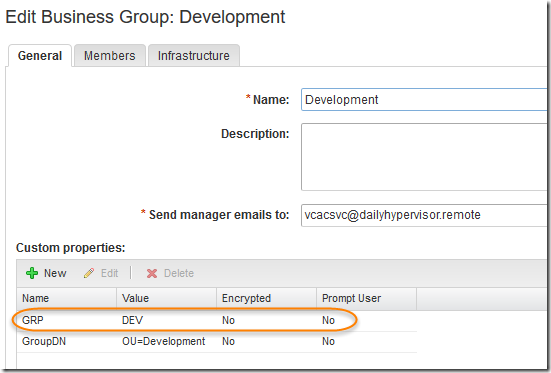
Group will be specified at the Business Group level, so in my Development Business Group, I created a property named GRP with the value DEV.